
Reader guide
The Society makes the complete text of À la recherche du temps perdu available online. Reading is free: there is nothing to install, no account to create and no password to remember. This page illustrates every available action, one by one.
The screenshots show the French interface. In the reader, controls are translated into the language you choose; the text of the work remains in French.
In this guide, the French control labels shown in the screenshots are followed by their English equivalents.
14 pages · Read offline or print.
1. Open the text
The reader’s home page bears the novel’s title and a large button. Click Commencer la lecture (Start reading): the text opens at the beginning of the first volume.
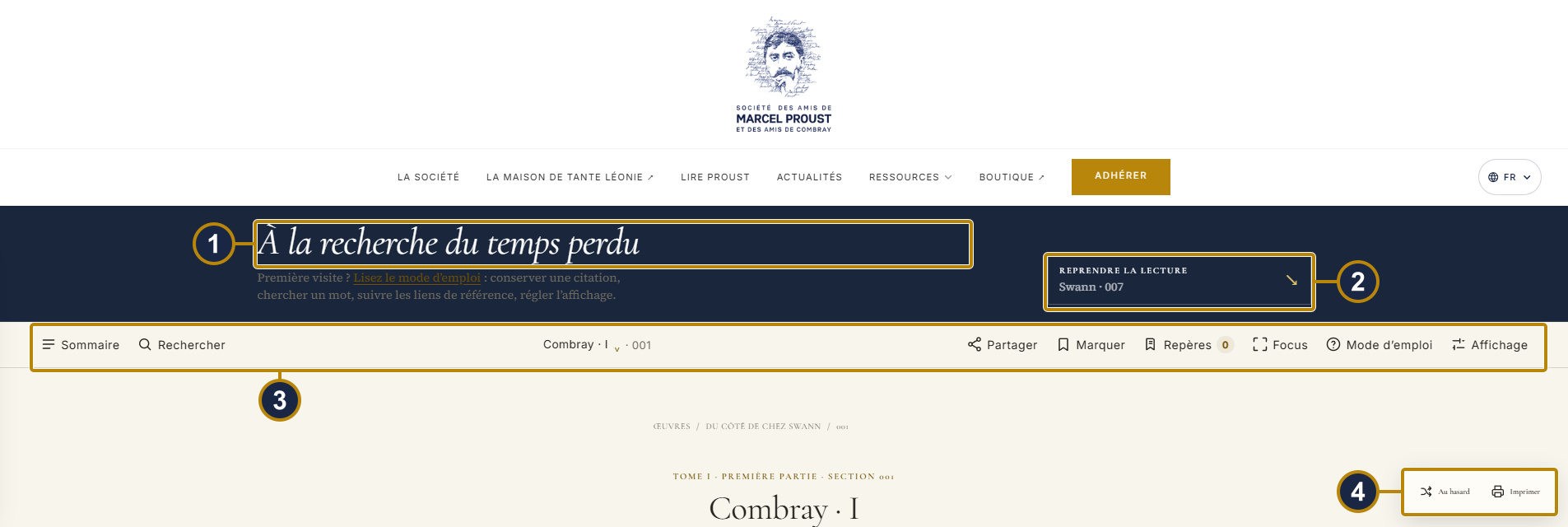
- The work’s title: you are in the reader.
- Commencer la lecture (Start reading); later it becomes Reprendre la lecture (Resume reading).
- The toolbar, always at the top of the page.
- The Actions menu: Au hasard (Random) and Imprimer (Print).
Each time you open the reader, it displays the beginning of the first volume without erasing where you stopped. If you have already started reading, Reprendre la lecture (Resume reading) takes you back to your last position.
In the Actions menu at lower right, Au hasard (Random) opens a randomly selected section from the whole work, and Imprimer (Print) prints the section in view.
2. The toolbar, your dashboard
This bar remains at the top of the screen throughout your reading. On a computer, Sommaire and Rechercher are on the left; in the middle are the part title and current section; the six reading actions are on the right. On a phone it uses two rows: Sommaire, Rechercher and the part or section above; the six actions below.

- Sommaire (Contents): volumes, parts and chapters.
- Rechercher (Search) the whole work; shortcut: Ctrl + K.
- The part title and current section, in the middle.
- Partager (Share) the displayed passage.
- Marquer (Bookmark) the section.
- Repères (Markers), with its counter.
- Focus: hides Sommaire and secondary actions; the toolbar remains available.
- Mode d’emploi (Reader guide): the guide to the reader.
- Affichage (Display): the Confort de lecture (Reading comfort) panel.
Focus hides the Sommaire and secondary actions to give you more room to read. The toolbar remains available. Click it again to restore them. The Échap (Escape) key closes any open panel.
3. Move through the work
Click Sommaire (Contents), at the left of the toolbar. A panel opens with the novel’s seven volumes.
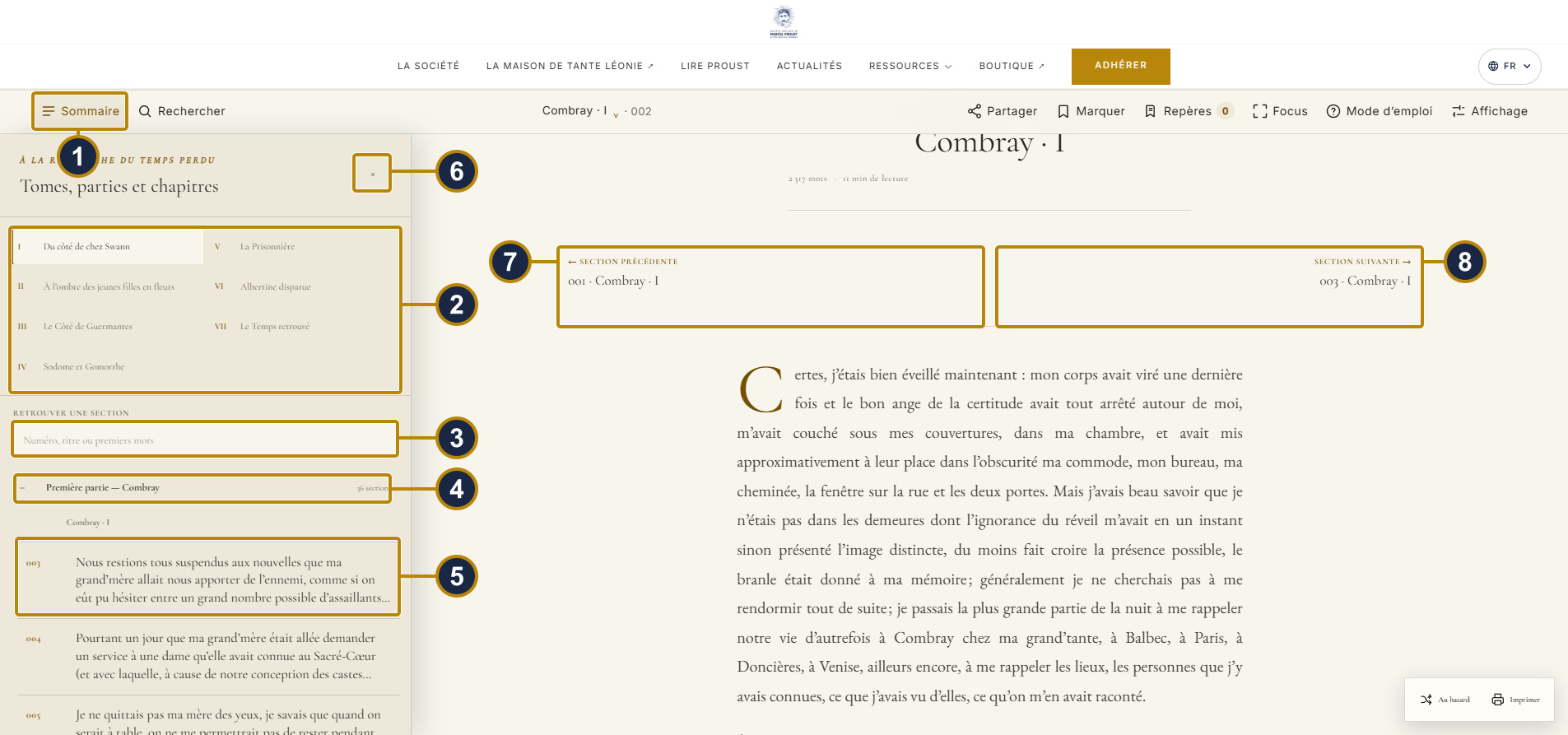
- Sommaire (Contents), which opens the panel.
- The seven volumes: click one to change volume.
- Retrouver une section (Find a section): enter a number, title, or opening words.
- The volume’s parts; click to expand them.
- The sections and their opening words; the current one is highlighted.
- Close the contents; Échap (Escape) does this too.
- Section précédente (Previous section), above the text.
- Section suivante (Next section), above the text.
In the middle of the toolbar, the selector shows the current part and lets you change it without leaving the volume.
To move between sections, use Section précédente (Previous section) and Section suivante (Next section), shown above and below the text. The left and right arrow keys do the same.
4. Search for a word
Click Rechercher (Search). Enter the word or phrase you want, then confirm: the reader searches all seven volumes. Ctrl + K, or Cmd + K on a Mac, opens this window directly.
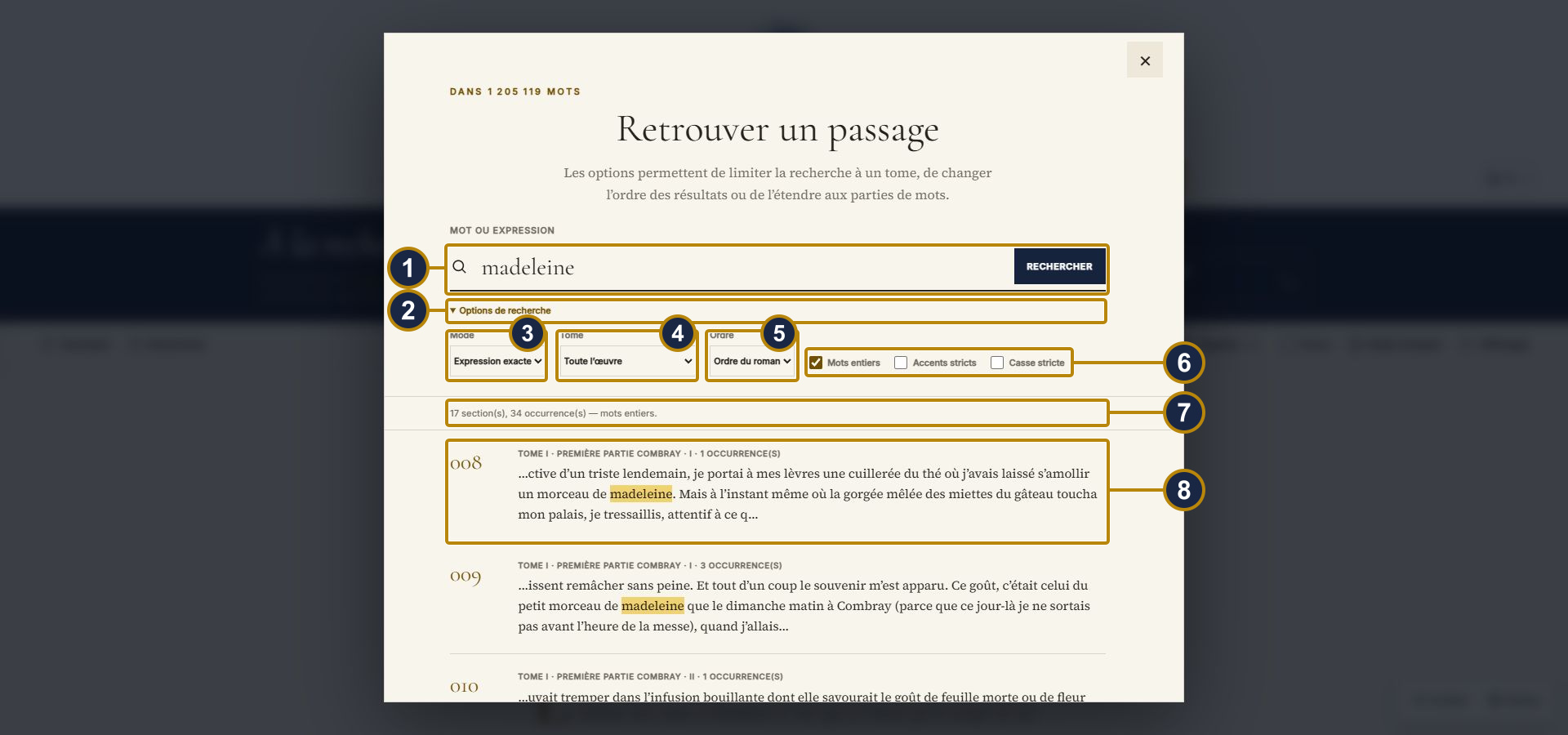
- Your word or phrase, then Rechercher (Search).
- Options de recherche (Search options), to expand for finer choices.
- Mode: Expression exacte (Exact phrase), Tous les mots (All words), or Au moins un mot (At least one word).
- Volume: Toute l’œuvre (Whole work), or one volume.
- Order: Ordre du roman (Novel order) or Pertinence (Relevance).
- Mots entiers (Whole words), Accents stricts (Match accents), and Casse stricte (Match case).
- The number of sections and passages found.
- A result: volume, section and excerpt. Click to go there.
Mots entiers (Whole words) is selected by default: mer will therefore not return amertume. Clear it to search within words too. Accents stricts and Casse stricte, cleared by default, distinguish “e” from “é” and capitals from lowercase respectively.
5. Save a quotation
Drag across a passage with the mouse button held down, as when highlighting it. On a phone, press a word and drag your finger. A small bubble appears above the selection with two buttons.
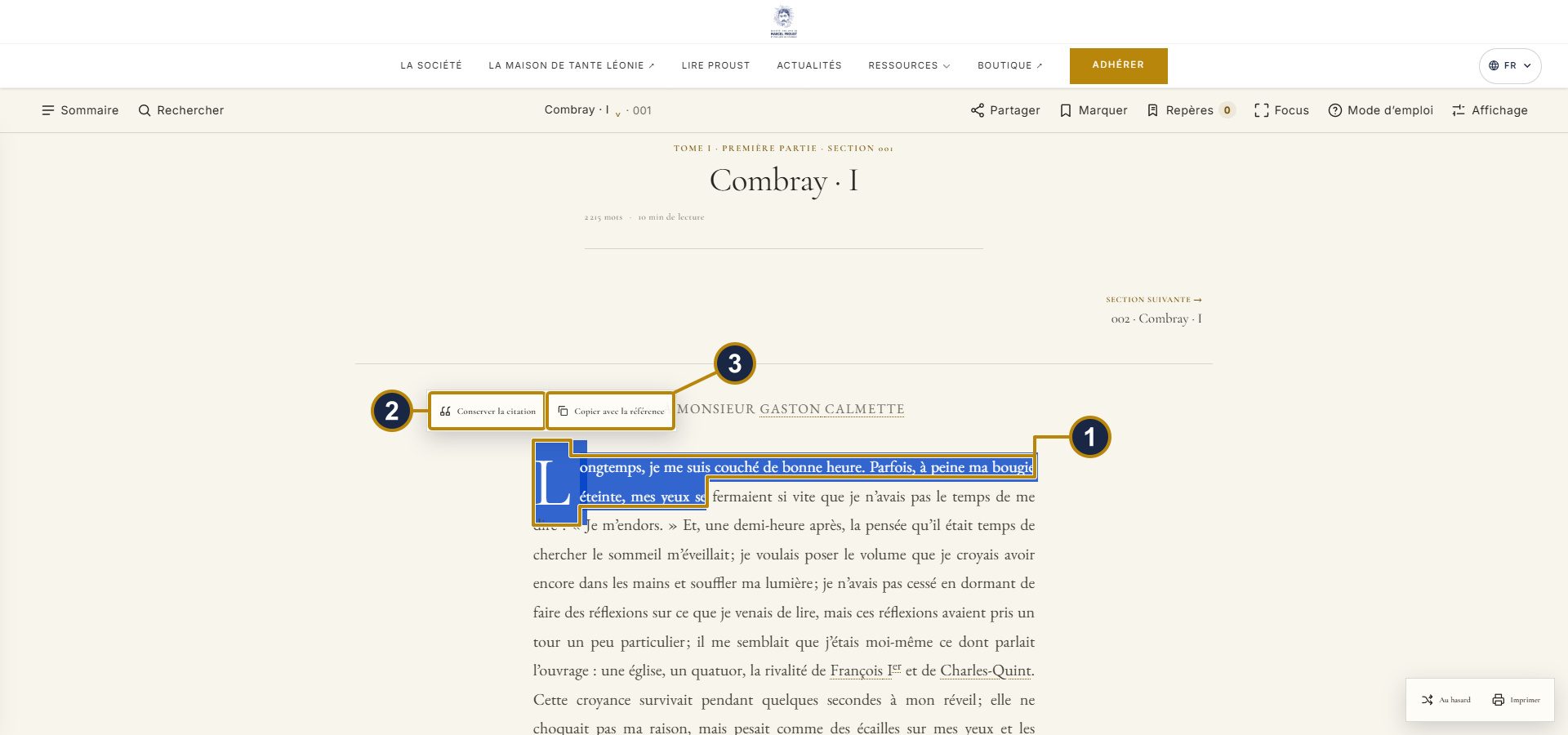
- The passage you selected.
- Conserver la citation (Save quotation): stores it in your markers.
- Copier avec la référence (Copy with reference): copies passage, reference and address.
Copier avec la référence prepares everything: paste it into an email, article or lecture. You get three lines:
« Longtemps, je me suis couché de bonne heure. »
— Marcel Proust, À la recherche du temps perdu, Tome I, Du côté de chez Swann, section 001.
https://www.amisdeproust.fr/ressources/oeuvres-de-proust/lire#tome=1§ion=t1-s001¶graphe=t1-p0001
First comes the quoted passage, then its reference — title, volume in Roman numerals and title, section number — and finally its exact address. That address lets a reader return to the right paragraph.
6. Bookmark a section
You need not select a passage to keep a page close at hand. The Marquer (Bookmark) button in the toolbar — the fifth button, see the illustration in section 2 — places a bookmark on the entire section.
Once used, the button becomes Marquée (Bookmarked). Click again to remove the bookmark.
7. Find your markers
The Repères (Markers) button — the one with a counter — opens the Mes repères (My markers) window. It shows your bookmarked sections first, then your saved quotations below.
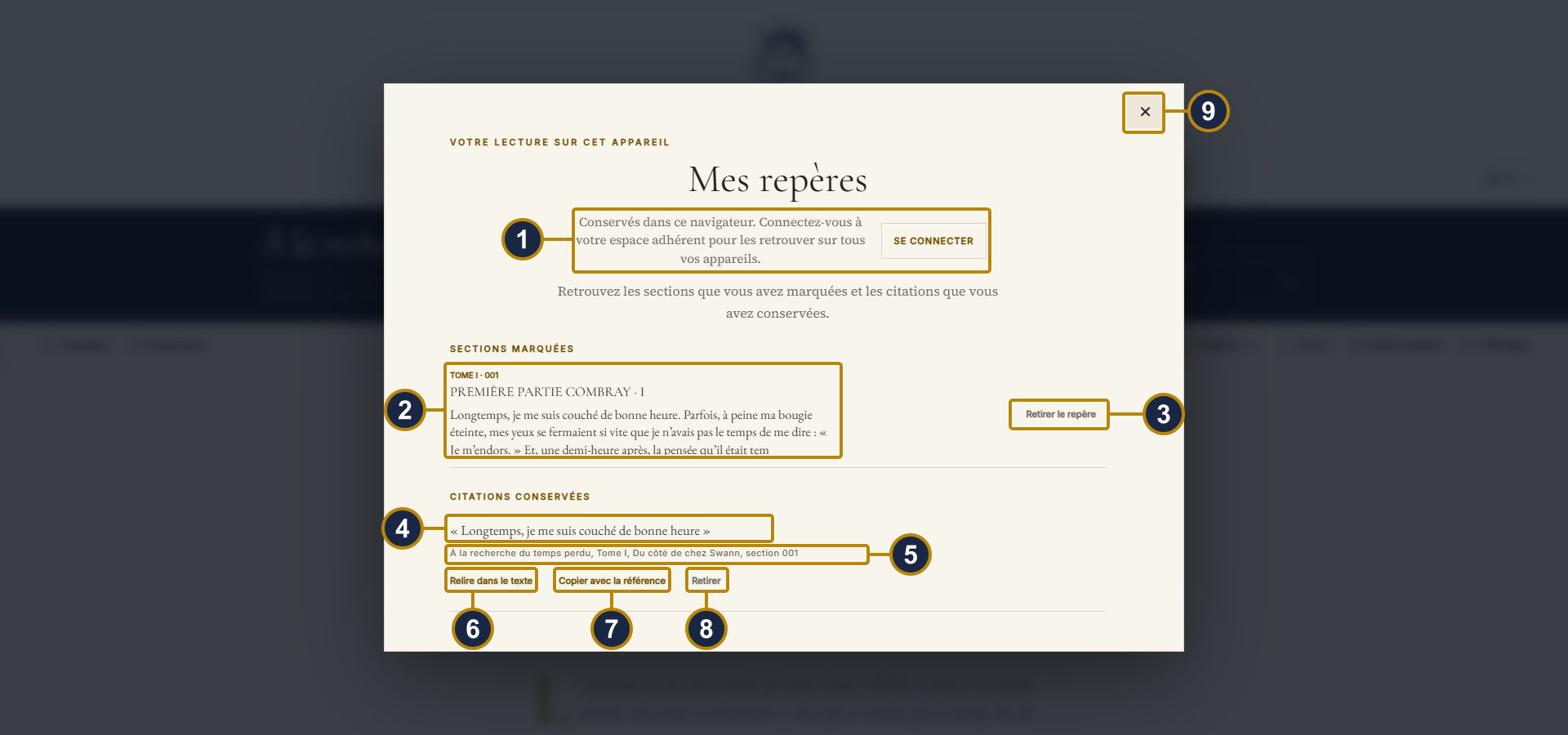
- Where markers are stored, and Se connecter (Sign in).
- A bookmarked section: volume, number and opening lines.
- Retirer ce repère (Remove this marker).
- A saved quotation.
- Its exact reference.
- Relire dans le texte (Read again in the text): reopens the passage.
- Copier avec la référence (Copy with reference), as in the bubble.
- Retirer (Remove): deletes the quotation.
- Close the window.
On a phone, the same window extends down the screen. Bookmarked sections come first, then saved quotations. Scroll through the dialog to reach the quotations and their actions, then tap the cross to close it.
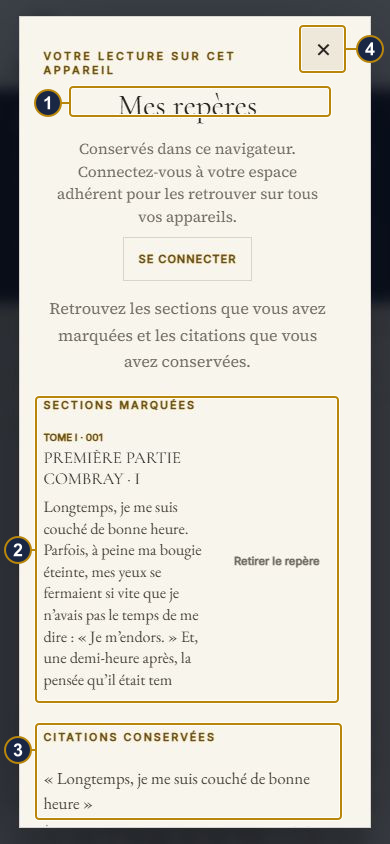
- The same Mes repères window on a phone.
- Your bookmarked sections.
- Your saved quotations.
- Close.
8. Keep them across devices
If you are not signed in, your markers are kept only on this device. They survive closing the page and switching off the computer, but do not follow you to another device; they disappear if you clear your browser data.
If you are a member and signed in to your account, they are copied automatically between devices. Mes repères then displays “Synchronisés avec votre espace adhérent” (Synchronised with your member account), and you find the same quotations on your phone, tablet and computer.
Your member-account dashboard lists them under Mes repères de lecture (My reading markers), with Relire dans le lecteur (Read again in the reader) and Retirer (Remove) for every quotation.
If copying fails — a lost connection or an expired session — nothing is lost: the reader tells you and continues to keep your markers on the device.
9. Share a passage
The Partager (Share) toolbar button, the fourth one, offers the displayed passage to your device’s apps: email, messages and social networks. If your device cannot do that, the reader instead copies the precise link to the passage, ready for you to paste wherever you wish.
10. Reference links
Proust invokes hundreds of paintings, books, operas, newspapers and real people. The Society has linked 992 of these mentions to a page presenting them: 611 real people, 108 painters, sculptors and architects, 93 literary works, 71 stage and musical works, 87 artworks whose reproduction we offer, and 15 newspapers and periodicals.
These words have a dotted gold underline. When you hover over one, the line becomes solid and the word turns gold.
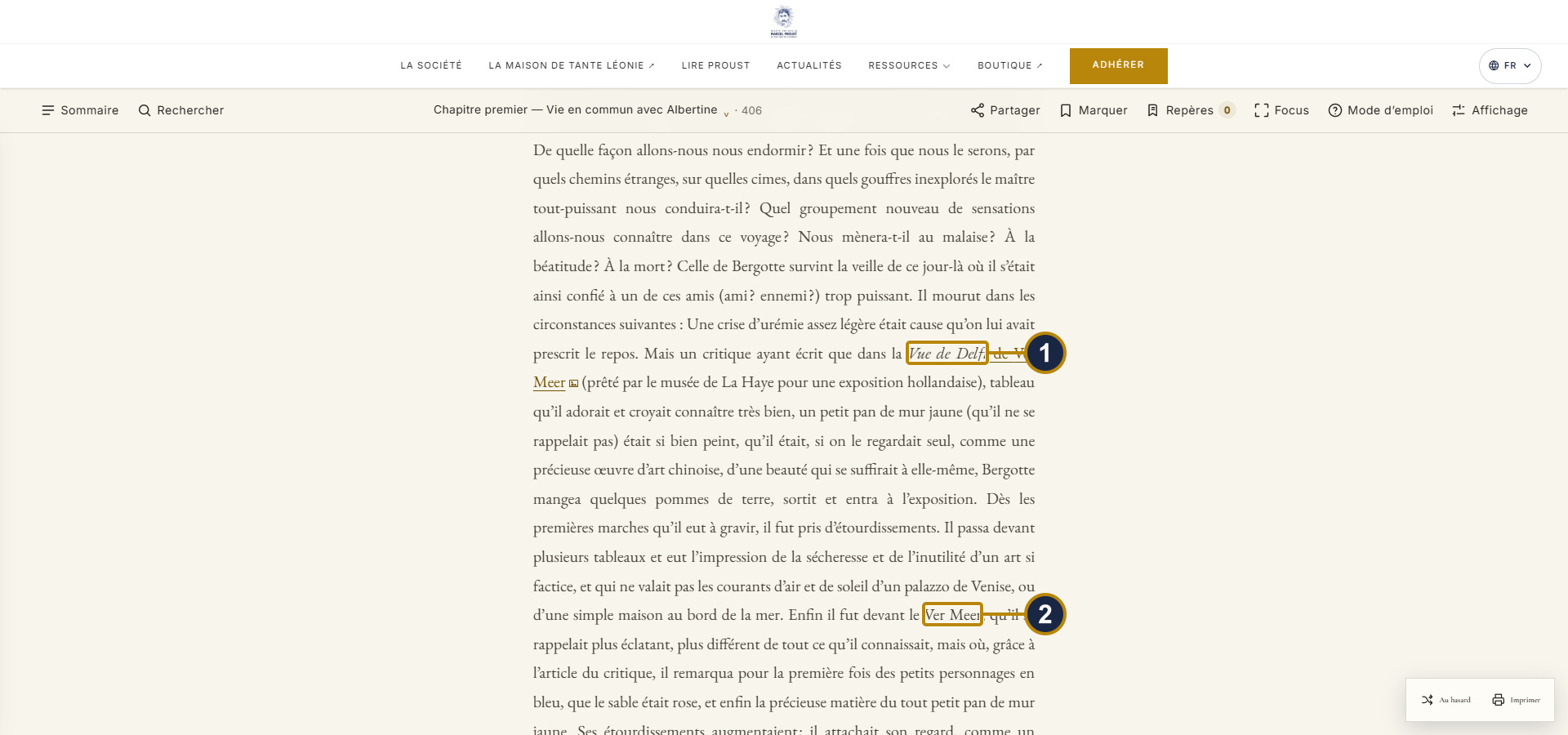
- The ‘Vue de Delft’ link at rest: a dotted gold underline.
- The ‘Ver Meer’ link under the mouse: its line becomes solid and the name turns gold.
Clicking opens the reference page in a new tab, so you do not lose your place in the novel. For an artwork it is the museum’s page; for all else it is the French Wikipedia article.
The links are added when the text is displayed: they do not alter a single character of the novel’s transcription. This indexing work belongs to the Society and is published under the Creative Commons BY-SA 4.0 licence.
11. View a painting in full size
The 87 artworks whose reproductions we host work slightly differently. A simple click does not take you away: it displays the image full size over the text.
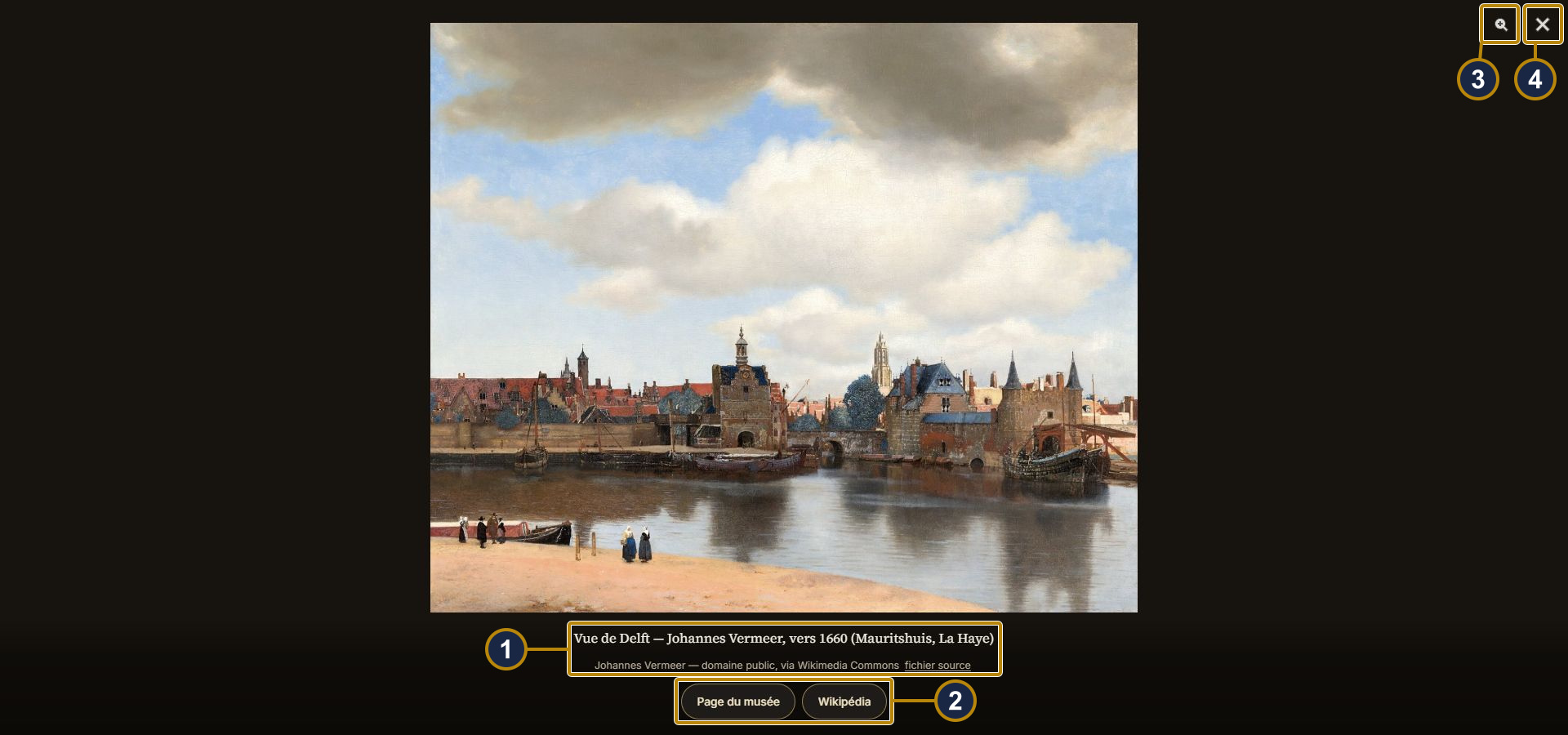
- The caption: title, artist, date, holding institution and credit.
- ‘Page du musée’ (Museum page) and ‘Wikipédia’.
- Zoom in on the reproduction.
- Close and return to the text; Échap (Escape) does this too.
To go directly to the museum page, use the middle mouse button: it opens in a new tab, as other links do.
12. Adjust the display to suit you
The Affichage (Display) button at the far right of the toolbar opens the Confort de lecture (Reading comfort) panel. Every setting changes live as you move a slider.
The panel scrolls: on a shorter screen, scroll down to Liens de référence and Rétablir les réglages.
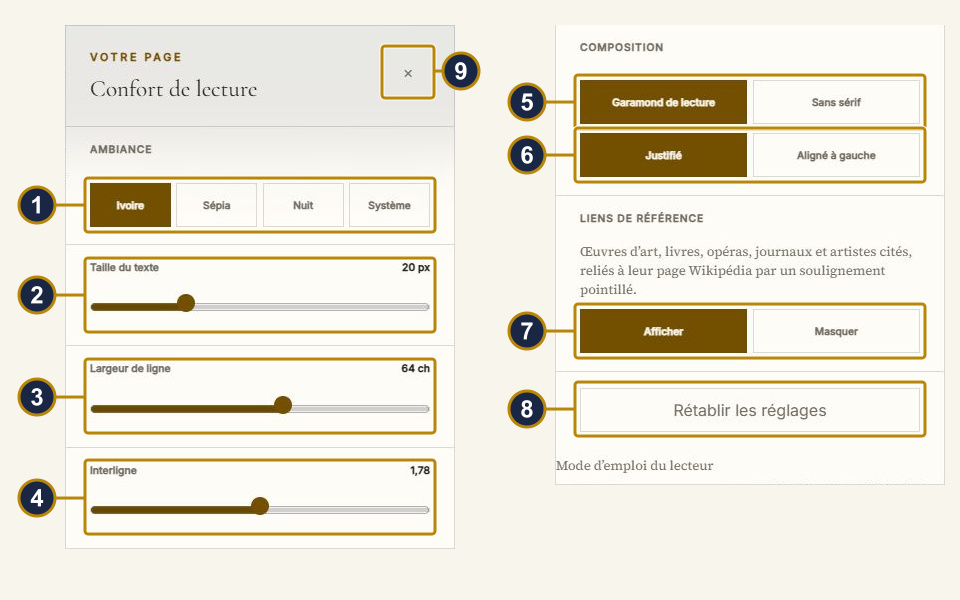
- Theme: Ivoire (Ivory, default), Sépia, Nuit (Night), or Système (System), matching your device’s light or dark setting.
- Taille du texte (Text size): 17 to 28 pixels, 20 by default.
- Largeur de ligne (Line width): 48 to 76 characters, 64 by default.
- Interligne (Line spacing): 1.5 to 2.1, 1.78 by default.
- Composition: Garamond de lecture or Sans sérif.
- Justifié (Justified) or Aligné à gauche (Left-aligned).
- Liens de référence (Reference links): Afficher (Show) or Masquer (Hide).
- Rétablir les réglages (Restore settings): restores the defaults.
- Close the panel.
Your choices are retained from one visit to the next, so you make them only once.
13. Read without links
If the underlines distract you, choose Masquer (Hide) on the Liens de référence (Reference links) row in Confort de lecture. Here is the section 10 passage with links hidden.
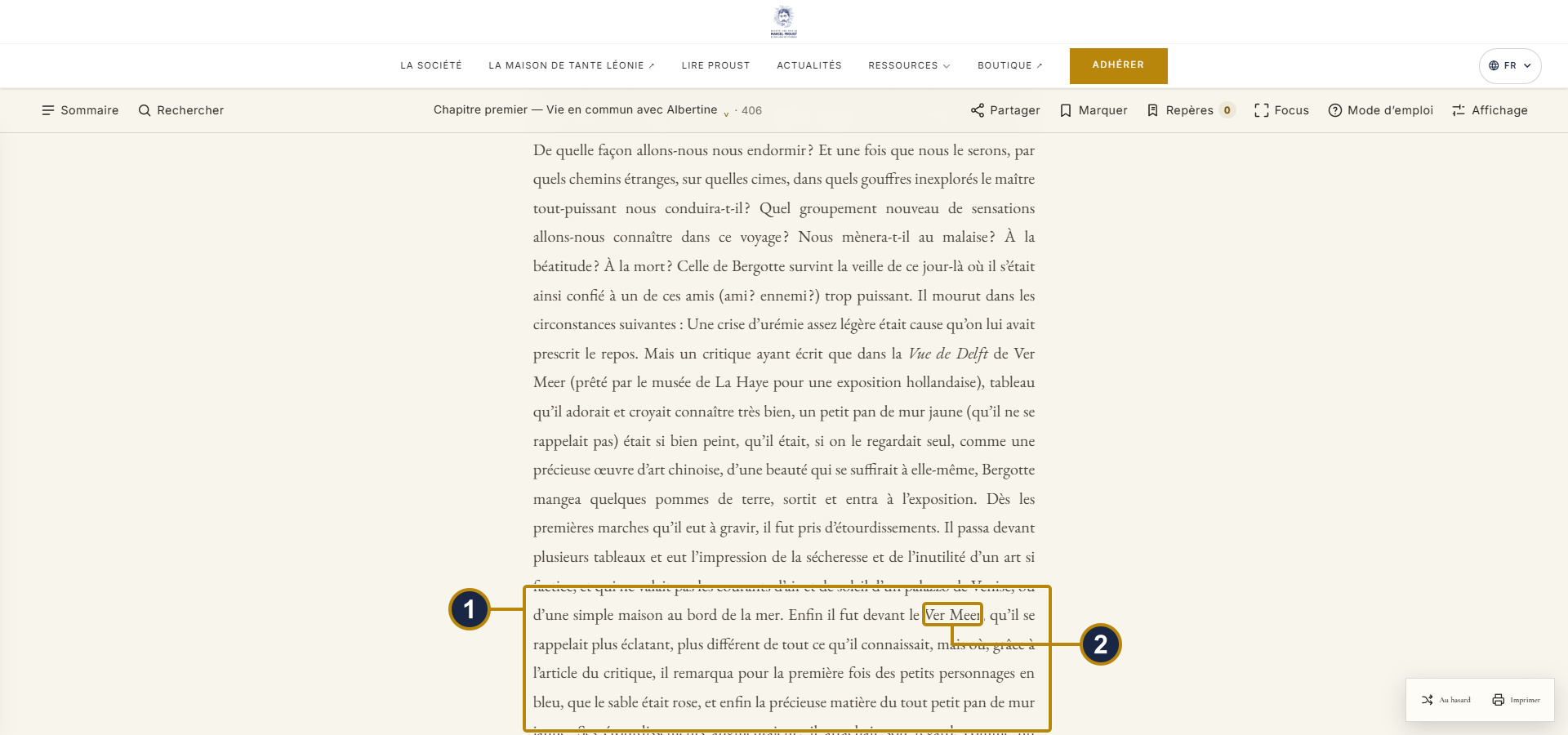
- The same passage with links hidden: no underlining remains.
- The name stays in the text, but is no longer clickable.
The text you then read is strictly that of the edition, with no additions. Return to Afficher (Show) whenever you wish.
14. The edition used
The reader provides twelve texts. First, the seven volumes of À la recherche du temps perdu, published during Proust’s lifetime and in the years following his death: Du côté de chez Swann (1913), À l’ombre des jeunes filles en fleurs (1919), Le Côté de Guermantes (1920), Sodome et Gomorrhe (1921), La Prisonnière (1923), Albertine disparue (1925), and Le Temps retrouvé (1927): 541 sections, 4,685 paragraphs and a little over 1,205,000 words. Then five other works: Les Plaisirs et les Jours (1896), La Bible d’Amiens (1904), Sésame et les lys (1906), Pastiches et Mélanges (1921) and Chroniques (1936): 180 sections and nearly 292,000 words.
These texts are in the public domain. We use Wikisource transcriptions under Creative Commons BY-SA 3.0. Each text comes from a specific revision whose number and date are recorded in our files. The transcriptions were prepared page by page from scans of historical editions available on Wikimedia Commons, notably from Gallica and the Internet Archive. Depending on the volume, the source is the 1919 edition or a later printing; Du côté de chez Swann alone uses facsimiles of two different editions. Wikisource contributors have proofread all the transcriptions, but only some volumes have been validated by a second contributor.
Our only interventions are technical: removing Wikisource navigation markers, cleaning and standardising characters, and dividing the text into sections. The text itself is never altered.
At the foot of every section, under Sources et crédits (Sources and credits), Consulter (View) details the source revision, original photographs, contributors and checksums for the displayed volume. The provenance notice can be downloaded from the same window. The details for each work — the printing reproduced, the proofreading status, and what the history of publication has left in the text of the three posthumous volumes — are given in the note on the text.
15. If you need help
Cannot close an open panel? Press Échap (Escape), at the upper left of the keyboard, or click the cross.
Has the display become odd? Open Affichage (Display) and click Rétablir les réglages (Restore settings).
A typo in the text, a link to the wrong person, an incorrect reproduction, or simply a question: write to contact@amisdeproust.fr and we will correct it. If possible, indicate the volume and section number displayed at the top of the page. This reader is made for Proust’s readers, and improves with your comments.